pyradio_server(1)
🌸 Name 🌸
okay so this is pyradio_server(1), bestie — the manual page for the remote-control server side of things. The Name section is short and iconic: pyradio — a curses Internet radio player. 💖
🔥 PyRadio Remote Control Server 🔥
pyradio can be controlled remotely using normal http requests — either from the command line (with curl, for example) or from a browser. No cap. ✨
For this purpose, a simple web server has been integrated in pyradio; this server can be started:
- automatically — Setting the Remote Control Server options in the config file, especially setting the Auto-start Server to
True, or - manually — by pressing
"\s"at the main window, selecting the desired options and pressing"s".
The options you can set are:
- Server IP — This can either be
localhost(the server will be accessible from the current system only) orLAN(the server will be accessible from any PC on the local network). If the machine has more than one interface (network card), the actual IPs will be available for selection. 🌈 - Server Port — This is the port the server is listening to. Any free port number between
1025and65535can be set here (default value is9998). 🎀 - Auto-start Server — This option is available in the config only. If set to
True, the server will be automatically started whenpyradiostarts. ⭐
After the server is up, pressing "\s" will display a window which will present both the server's Text and Web address. 🫶
💖 Using the Web Server 💖
Inserting the Web address displayed in the previous window in a web browser will result in loading the Remote Control Web Interface, shown in the following image (which is actually a screenshot of my mobile phone):
https://members.hellug.gr/sng/pyradio/phone.jpg

The interface consists of a header, a title field, and the commands buttons. 💅
The idea is that while pyradio is running on the PC, people relaxing on the sofa, chilling with friends, listening to music from their favorite radio station, being able to increase / decrease the volume, change stations, etc. using their phones. Literally main character energy. 👑
The available commands are "encoded" in the buttons shown on the screen; the right part of the image shows the output of the "Stations List" button. To start a station, I would just click (well, tap) on its name, and viola! 🎉
The Web interface will show the song's title in the title field, if available, or the name of the station that's playing, if it's not.
In order to achieve this functionality, javascript is heavily used, so one should keep that in mind (in case javascript has been disabled in the browser, for example). 🙈
✨ Web Interface buttons ✨
The buttons shown in the web interface are:
- Local Playlist — This button will permit the user to toggle between opening a local playlist (default state) and a RadioBrowser “playlist”, actually a search result set of players. 🍓
- Play Next and Play Previous — The buttons title says it all… Subsequent clicks on a button will only be accepted after the player has “settled”, i.e. either started playing or failed to connect to the station.
- Play Hist. Next and Play Hist. Previous — Same as above, but stations will come from the “station history” instead of the current playlist. 💜
- Toggle Playback — Nothing more to say here; start/stop the player.
- Volume Up and Volume Down, Save Volume, Mute Player — These are the volume adjustment, saving and muting the player functions. 🔥
- Recording — Toggle recording button. Its caption indicates whether recording is enabled or disabled. Its background color indicates whether a file is currently being recorded (a station is being recorded), in which case the button's background color is green. If the color is red, no file is being recorded. 💀
- Show Stations — Clicking this button will present the list of stations in the current playlist (or search result). Clicking on a station name will start its playback. 🌸
- Show Groups — This will display, and permit the selection of the groups defined within a playlist. When a group name is selected, the list of players will be opened and scrolled to the beginning of the group.
- Show Playlists — This will show a list of the playlists already composed by the user. Clicking on a playlist’s name will open the playlist; the stations will be available through the Show Stations. When RadioBrowser is active, the button’s label will change to Show Searches. When clicked, the list of existing search items will be presented to the user; clicking on an item will perform the search and results can be displayed by clicking on the Show Stations button. No new items can be inserted using the web interface. 🦋
- Enable Title Log — This will enable or disable the titles logging function.
- Like Title — This will “like” the current (song). 😭
- System Info — This will display useful info about
pyradio. ⭐
🦋 Navigating through RadioBrowser results 🦋
All PyRadio queries to RadioBrowser will use a return limit parameter (default is 200 stations). 🎀
This means that the user is presented at most the first 200 stations (or whatever limit value he has set), but the actual result set may comprise hundreds of stations.
PyRadio will permit the user to navigate through them by displaying the “navigation buttons” when the stations’ list is requested, provided that there is a possibility for a subsequent page to exist — PyRadio has no way of knowing that beforehand.
An example can be seen in the following image.
https://members.hellug.gr/sng/pyradio/radiobrowser-pages.jpg
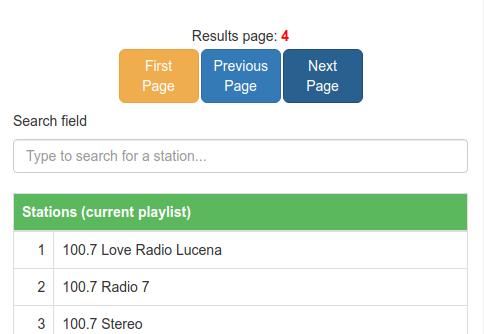
In this example, the user has already displayed the fourth “page” of results; the buttons displayed are:
- First Page — Display the first page of results. This button is displayed only when the third (and consequent) page is displayed.
- Previous Page — Display the previous page of results. This button is displayed only when the second (and consequent) page is displayed. 🌈
- Next Page — Display the next page of results. This button is visible only if the number of results in the current page is equal to the limit value set for the query. This way the user knows he has displayed the last page of results. Chances are the last page of results contain “limit” stations; in this case, clicking the button will produce no change (the existing page will be redisplayed). This is an indication that the last page of results has been reached. 🔥
✨ Using the Text Server ✨
okay so why would you even want the Text interface too? valid question, bestie. First of all, it’s lighter, and then you can use it to locally control pyradio from a script — like giving yourself a way to adjust the volume using some assigned shortcut key combination. 💅
Drop the Text address into a terminal with curl or wget or any similar software:
$ curl http://192.168.122.4:9998or
$ wget http://192.168.122.4:9998 -q -O -and boom, it displays the list of available commands:
PyRadio Remote Service
Global Commands
Long                        Short      Description
______________________________________________________________________________
/info                       /i         display PyRadio info
/volume                     /v         show volume (text only)
/set_volume/x               /sv/x      set volume to x% (text only)
/volumeup                   /vu        increase volume
/volumedown                 /vd        decrease volume
/vulumesave                 /vs        save volume
/mute                       /m         toggle mute
/log                        /g         toggle stations logging
/like                       /l         tag (like) station
/title                                 get title (HTML format)

Restricted Commands (Main mode only)
______________________________________________________________________________
/toggle                     /t         toggle playback
/playlists                  /pl        get playlists list
/playlists/x                /pl/x      get stations list from playlist
id x
                                         (x comes from command /pl)
/playlists/x,y              /pl/x,y    play station id y from playlist
id x
/stations                   /st        get stations list from current
playlist
/stations/x                 /st/x      play station id x from current
playlist
/next                       /n         play next station
/previous                   /p         play previous station
/histnext                   /hn        play next station from history
/histprev                   /hp        play previous station from
history
/open_radio_browser         /orb       open RadioBrowser
/close_radio_browser        /crb       close RadioBrowser
/list_radio_browser         /lrb       list RadioBrowser search items
/search_radio_browser/x     /srb/x     execute search item x
                                         (x comes from /lrb)
The Restricted Commands will not work in Playlist mode; the Global Commands will work everywhere. ✨
🌸 Examples 🌸
The following commands will increase / decrease the volume and mute the player:
$ curl http://192.168.122.4:9998/vu
$ wget http://192.168.122.4:9998/vd -q -O -
$ wget http://192.168.122.4:9998/m -q -O -
The following command will display the contents of the loaded playlist:
$ curl http://192.168.122.4:9998/stThe stations will be numbered, like so:
Stations List for Playlist: "stations"
   1. Alternative (BAGeL Radio - SomaFM)
   2. Alternative (The Alternative Project)
  ...
  17. Jazz (Sonic Universe - SomaFM)
+ 18. Lounge (Illinois Street Lounge - SomaFM)
  19. Pop (PopTron! - SomaFM)
  20. Pop/Rock/Urban  (Frequence 3 - Paris)
  ...
> 33. Echoes of Bluemars - Cryosleep
  34. Echoes of Bluemars - Voices from Within
First column
  [> ]: Selected, [+ ]: Playing, [+>]: Both
so that in order to start playing station No 20, for example, one would just use the command:
$ curl http://192.168.122.4:9998/st/20The following command will get the current song title:
$ curl http://192.168.122.4:9998/title
retry: 150
event: /html/title
data: <b>Patti Page - Jingle bells</b>
The data field will contain the HTML format of the title, which is easy to parse in a script. 🫶
If the player is idle, the output will be:
$ curl http://192.168.122.4:9998/title
retry: 150
event: /html/title
data: <b>Player is stopped!</b>
Several commands (such as /v, /vu, /vd, etc.) will return this info; this is a side effect of the way the server works, but provides useful info for the script issuing the command. 💡
bestie, one thing that should be made clear: getting the above info does not mean that the command has succeeded. for example, issuing the/orc(/open-radio-browser) command will return the above info, but to make sure about the state ofpyradio, one should issue the/i(/info) command:
$ curl http://192.168.122.4:9998/i
PyRadio 0.9.2.20
  Player: mpv
  Service: RadioBrowser (Netherlands)
    Search: Name: christmas, Order: votes, Reverse: true
  Status: In playback
    Station (id=5): "Classical Christmas FM"
    Title: Patti Page - Jingle bells
  Selection (id=5): "Classical Christmas FM"
🦋 Text vs. Web commands 🦋
On first glance, the difference between a Text and a Web command is the /html part that exists in the latter. but things are actually more complex than that, no cap. 😭
For example, when the /st command is issued, the server will return the list of stations as text and keep listening for connections. In this case, one request has been made to the server and one response has been returned. ✨
Now, if the /html/st command was issued, the server will return the same list, but formatted as html, so that a browser can correctly display it. 🌈
This output would pretty much be unusable to a user issuing the "html" command on a terminal.
Furthermore, using it from a browser, clicking or tapping the corresponding button, will lead to a number of requests from the browser to the server (requesting the mute status, the player’s status, the song’s title, etc.). 💅
👀 See also 👀
okay that’s the whole vibe — this was pyradio_server(1) from the pyradio source, dated June 2024. mwah, ily, go control ur radio 💖🎀
📦 where this page comes from
- opensuse-leap 16.0: pyradio 0.9.3.9-bp160.1.10 · MIT
- Copyright (C) 2018-2024 Spiros Georgaras <sng@hellug.gr>
- 💖 girlified by deepseek-ai/DeepSeek-V4.1-Flash-1017 on : a language model's rewrite of the original, under its terms